

Restore old photos
Remove scratches and creases, repair fading and torn corners, sharpen faces and bring back colour. Your first restoration is free.
1. Upload your photo
2. What's wrong with it? (optional — pick what you see)
3. How strong should the repair be?
Cleans up damage and keeps everything else as it is. Safest for faces.
4. Extras
Quality
Fast, great for most photos
Output size
2K or 4K gives a larger, sharper file.
Sign in to restore your photo — your first one is free.
Only upload photos you own or have permission to restore. Restored photos are private to your account.
Turn your restored photos into a video
Make a short reel with titles, captions and music to share with family. Press “Make a reel” under your restored photo, or start with any photos.
Before and after
Drag the slider. Example photos are AI-generated, fictional old photos restored with this tool.
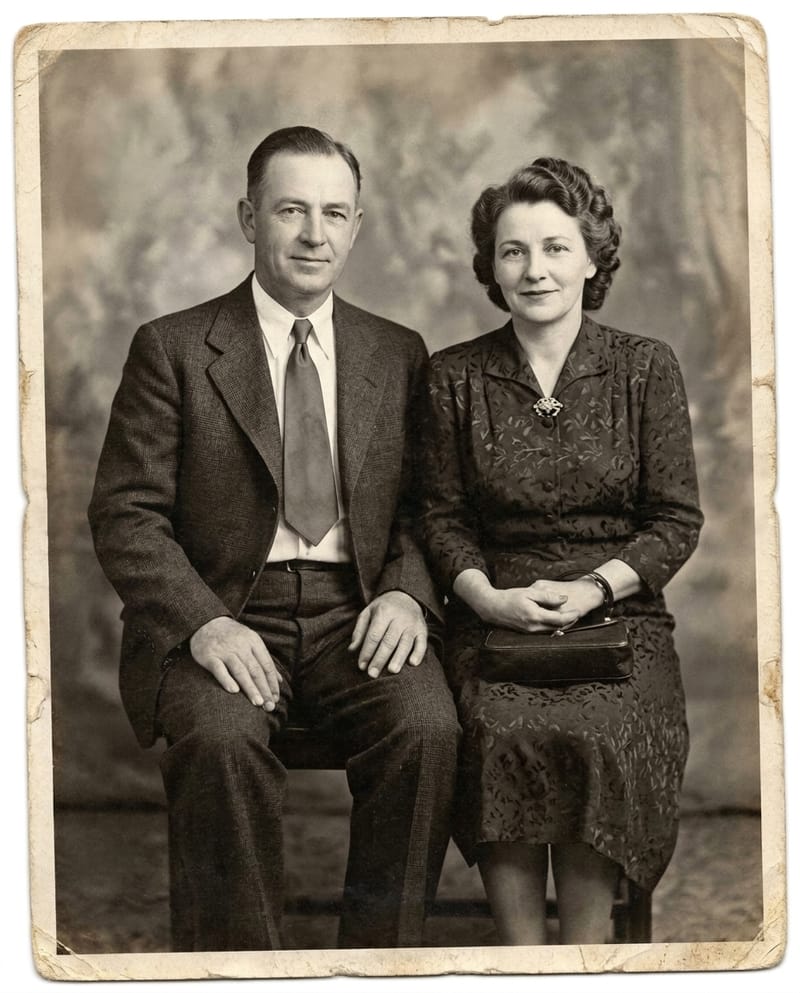
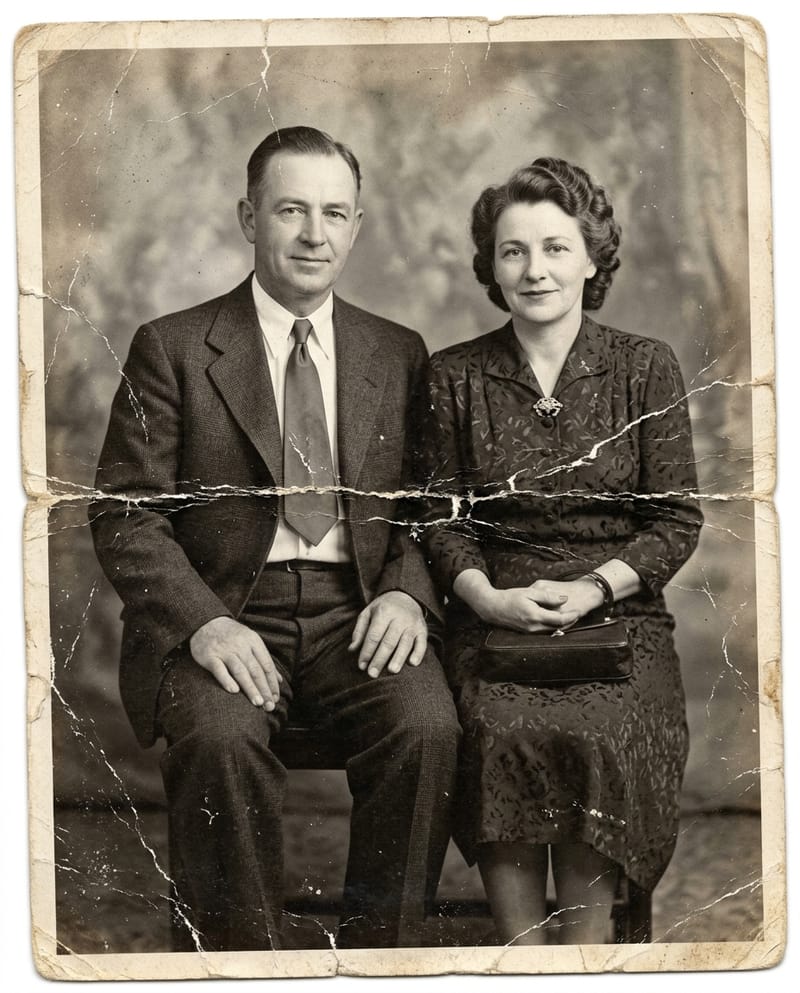 BeforeAfter
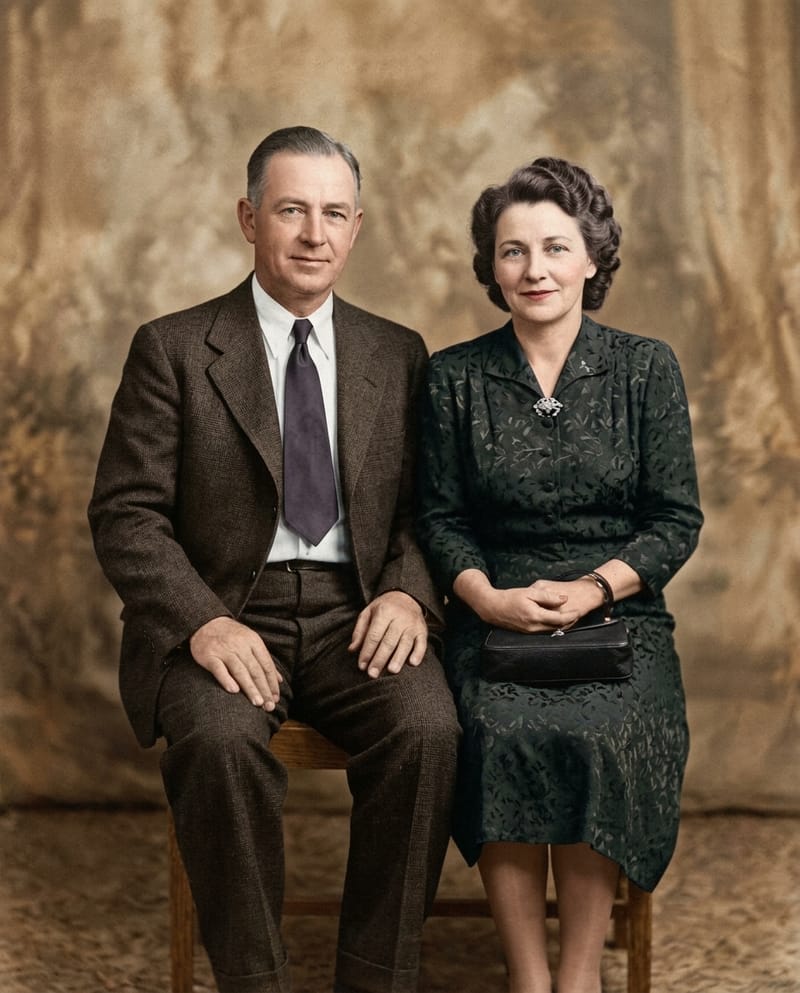 BeforeAfter
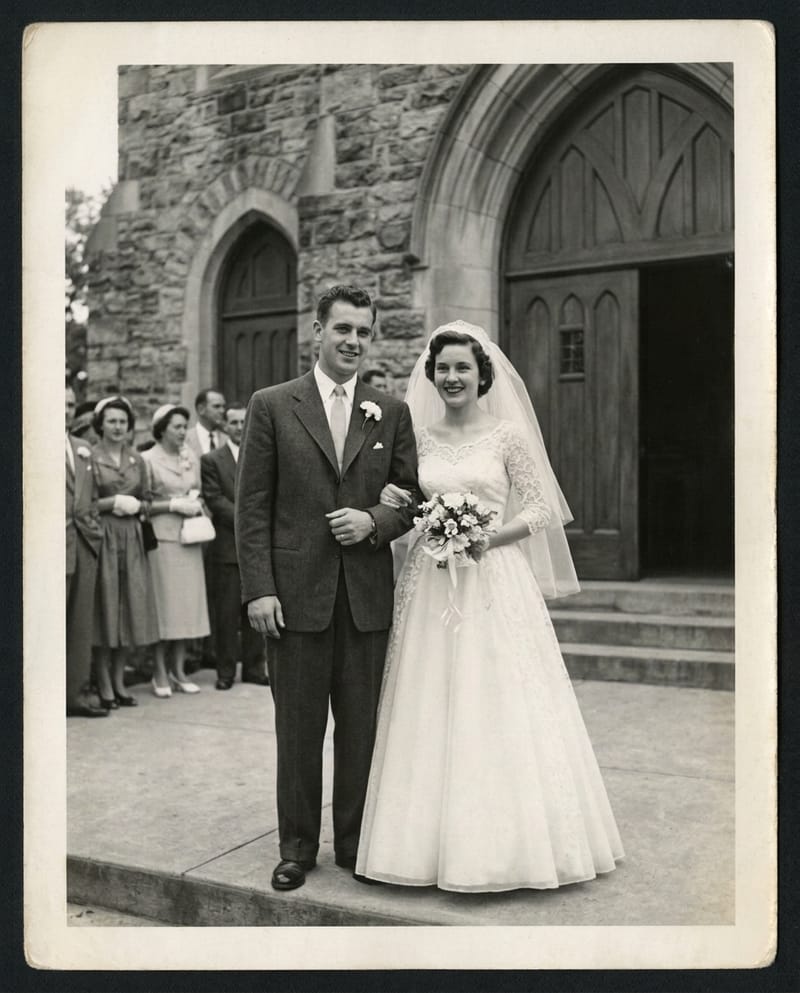
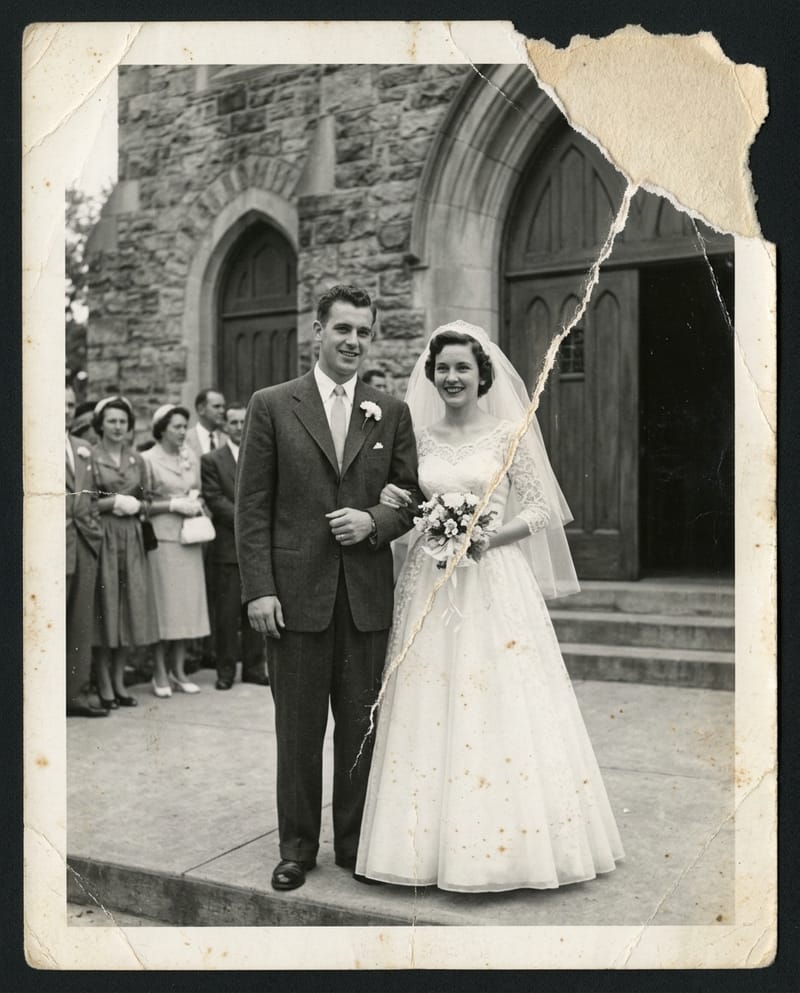 BeforeAfter
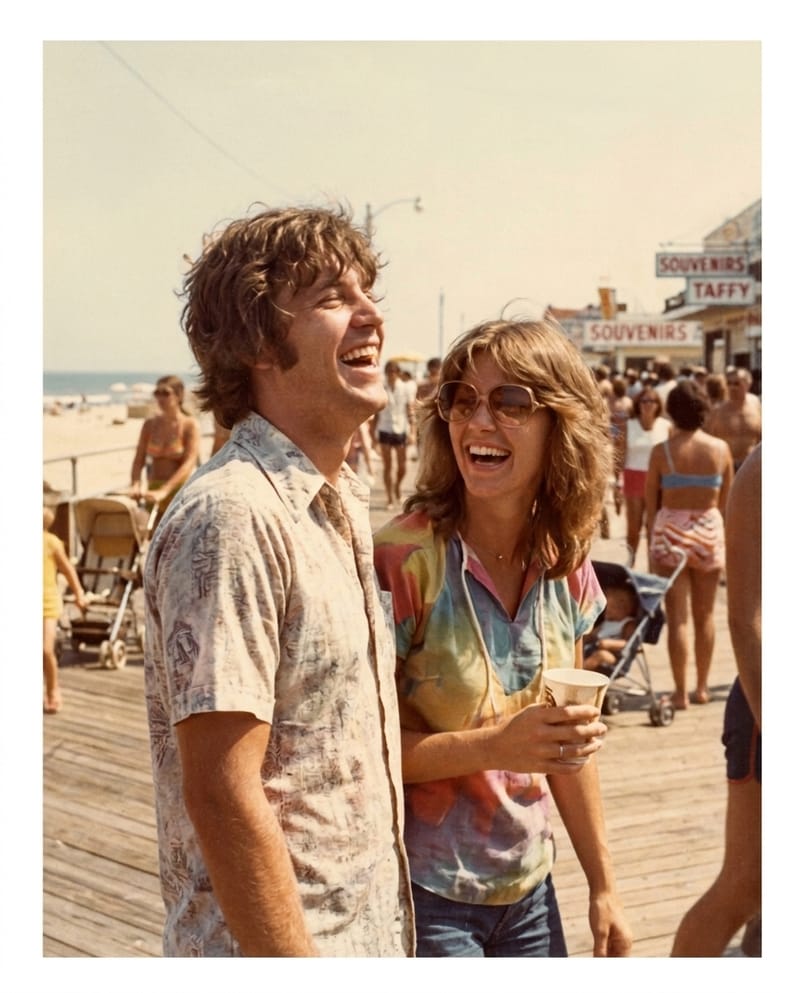
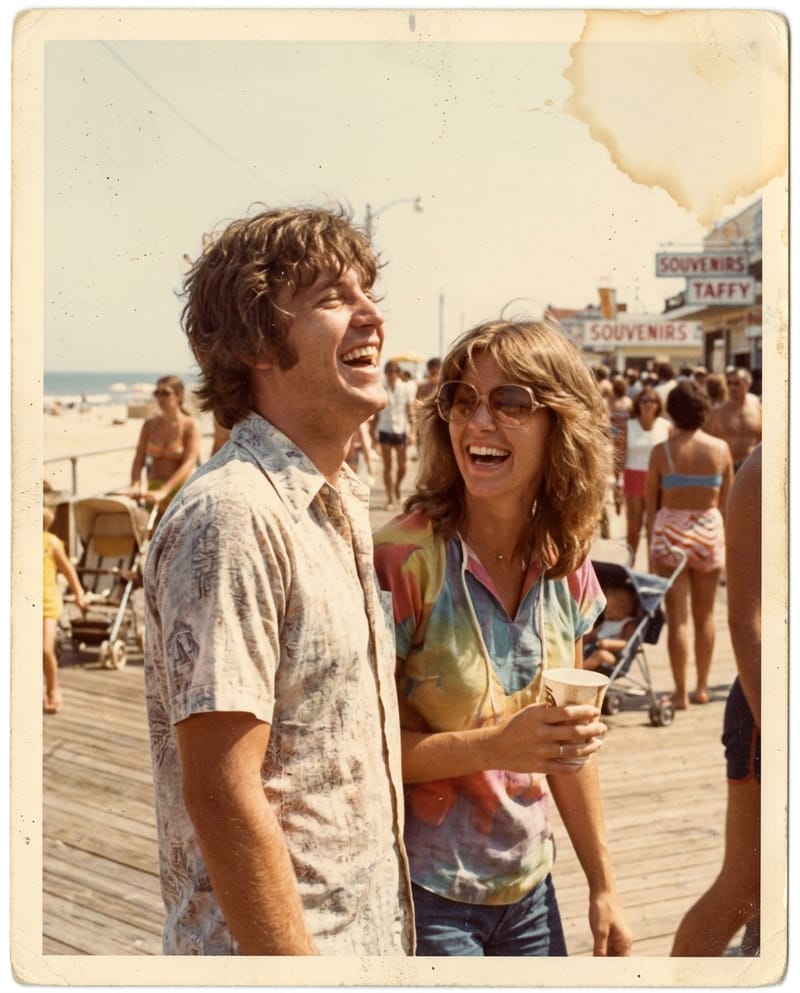 BeforeAfter
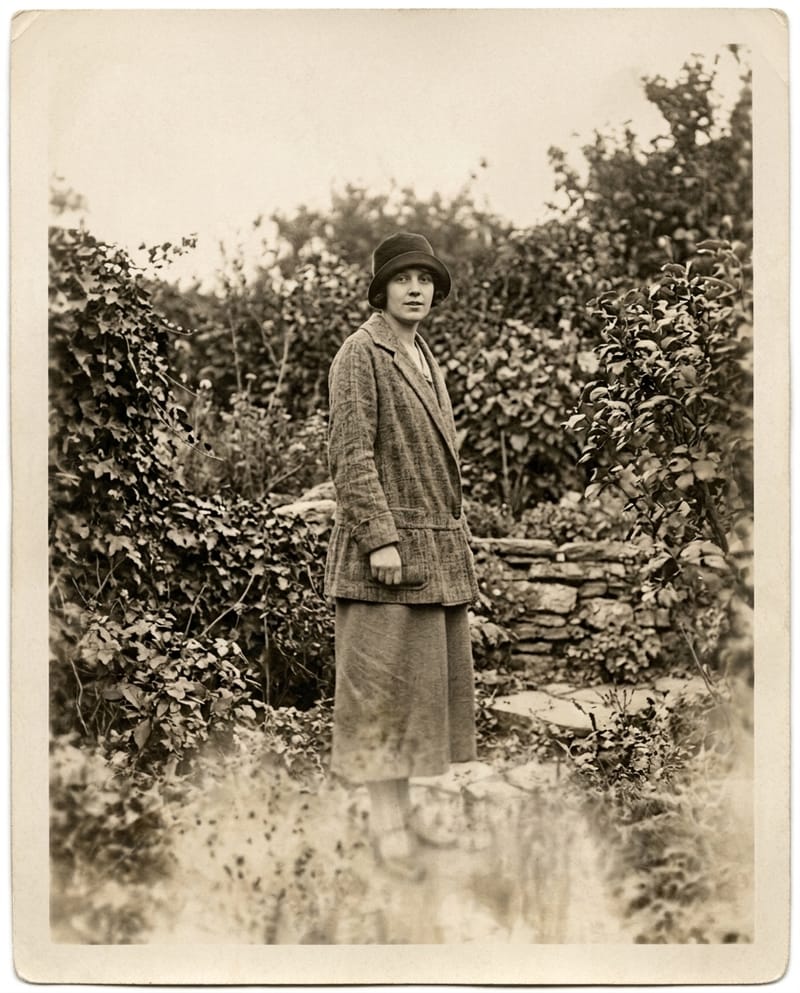
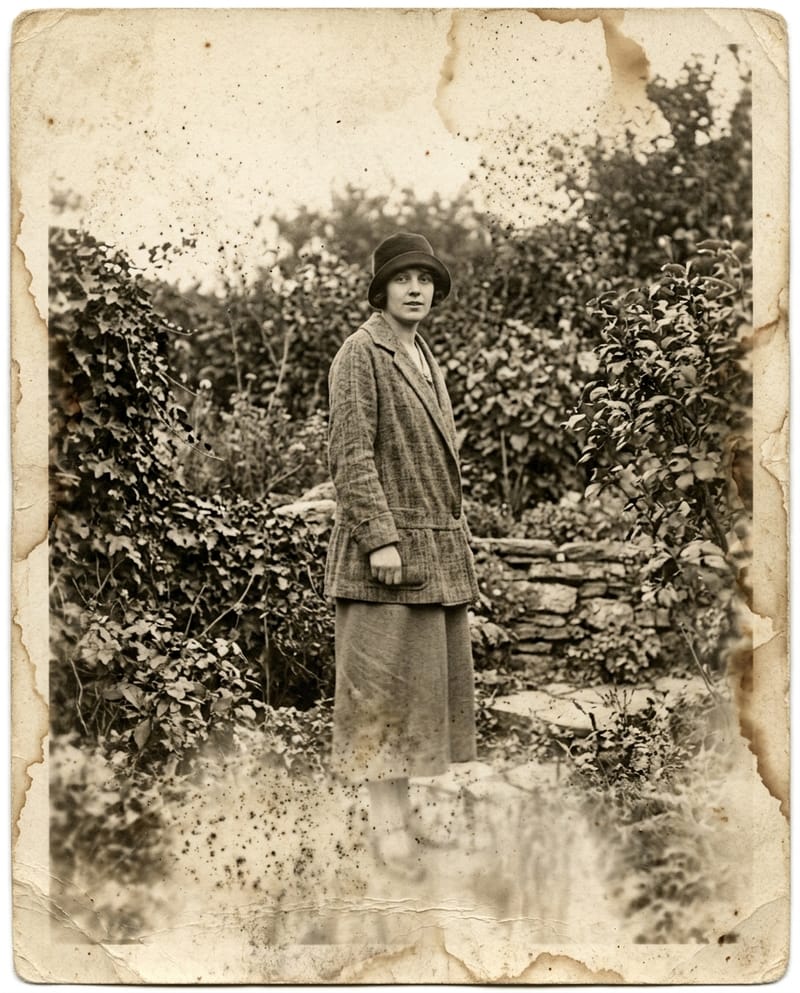 BeforeAfter
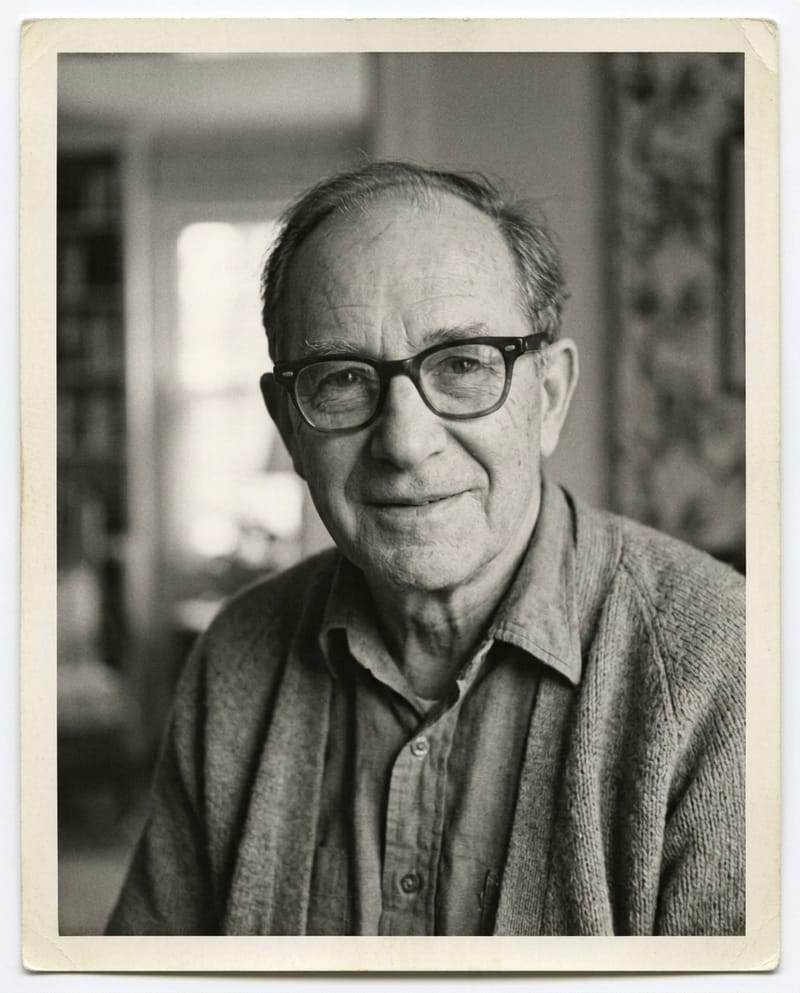
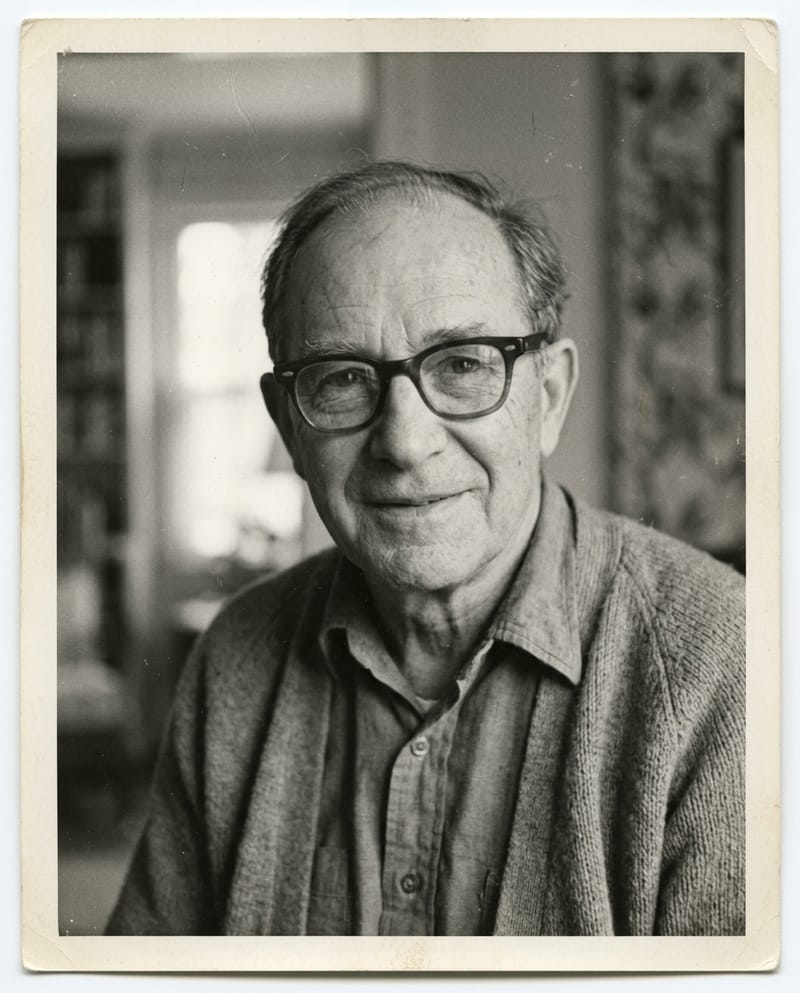 BeforeAfter
How it works
Step 1
Upload your photo
A scan or a clear phone photo of the print works. JPG, PNG or WebP, up to 8MB.
Step 2
Tell us what is wrong
Pick the damage you can see, choose how strong the repair should be, and add colour if you want it.
Step 3
Compare and download
Drag the slider to compare with your original, ask for a small fix if needed, then download it.
Restore by problem
Tips for the best results
- Scan prints flat at 600 dpi or photograph them in even daylight, without glare or shadows.
- Crop out the table and the border so the photo fills the frame.
- Start with Gentle. It is the safest for faces. Use Strong only for badly damaged photos, and check faces closely.
- Only pick the damage you can really see. Fewer instructions usually give a more faithful result.
- Keep your original scan. AI restoration can invent detail that was never in the photo.
Frequently asked questions
Is my first photo really free?
Yes. Every account gets one free restoration (Standard quality, up to 2K). If that restoration fails, you keep your free try. After that, a restoration costs the same credits as any image: 1 credit for Standard 1K, up to 4 for Best 4K.
Will it change how the people look?
The restoration is told to keep every face, age and expression exactly as they are, but AI can still alter fine facial detail, especially on badly damaged or very small faces. Gentle strength changes the least. Always compare with your original using the slider.
Can it add colour to black-and-white photos?
Yes. Switch on Colorize and it adds natural, period-appropriate colour. With it off, a black-and-white or sepia photo stays that way.
What kinds of damage can it fix?
Scratches, creases and folds, fading and yellowing, stains and spots, blur, and small torn or missing areas. Large missing areas have to be reconstructed by the AI, so the result there is a plausible guess, not the lost original.
Can I make the photo bigger?
Choose 2K or 4K to get a larger, sharper file. The AI rebuilds the picture at that size, which is not the same as a pixel-exact enlargement.
Can I bring the photo to life as a video?
Optionally. After restoring, "Animate this photo" opens the video generator with a gentle-motion prompt ready. Nothing is created until you press Generate there, and videos cost credits.
Are my photos private?
Restored photos are private to your account and are never shown publicly. Only upload photos you own or have permission to restore.